
 Live Chat

Choosing a Server in the Windows App
Introduction
Tap the location card on the home screen (for example London 13) to open Choose server. You can search, sort by ping, favourite a city, or let the app pick the fastest node.
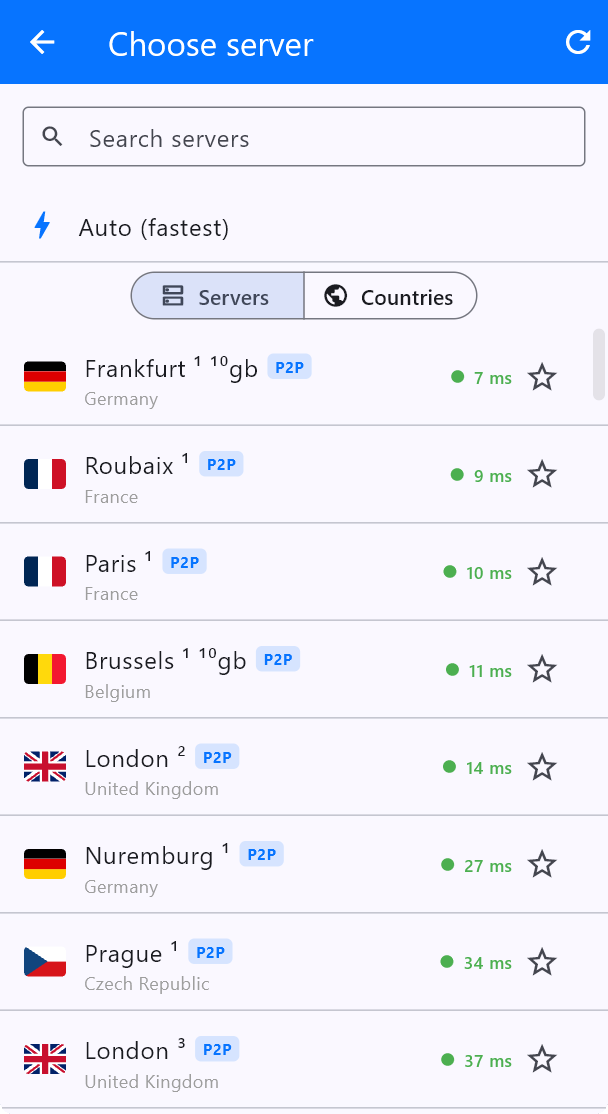
Pick a server
- On the home screen, tap the Location card.
- Use Search servers to find a city or country.
- Switch Servers / Countries depending on whether you want a specific node or a country list.
- Tap a row to connect. Green ping (for example 7 ms) is a nearby server; higher numbers are further away.
- Tap the star to favourite a server so you can find it again quickly.
Auto (fastest)
The lightning row Auto (fastest) picks the lowest-ping server. You can also turn on Auto-connect to fastest in Settings > PROTECTION so every new connection starts on the quickest node.
Badges on the list
- P2P — Peer-to-peer (torrents and similar) is allowed on that server. Prefer these for file sharing.
- 10gb — A 10 Gbit server. Use these when you want maximum throughput.
- Ping colour — green is close, orange/red is far. Streaming and calls feel better on green pings.
For BBC iPlayer and similar UK catalogues, pick a United Kingdom server (some lists also show dedicated names such as Iplayer). After connecting, confirm the IP at vpnsafe.net/whats-my-ip.
This article is also in the client area knowledge base.