
 Live Chat

Speed Test, Diagnostics and Protected Browser
Introduction
Settings > TOOLS has three utilities that sit next to the protocol picker: Speed test, Protected Browser, and Diagnostics.
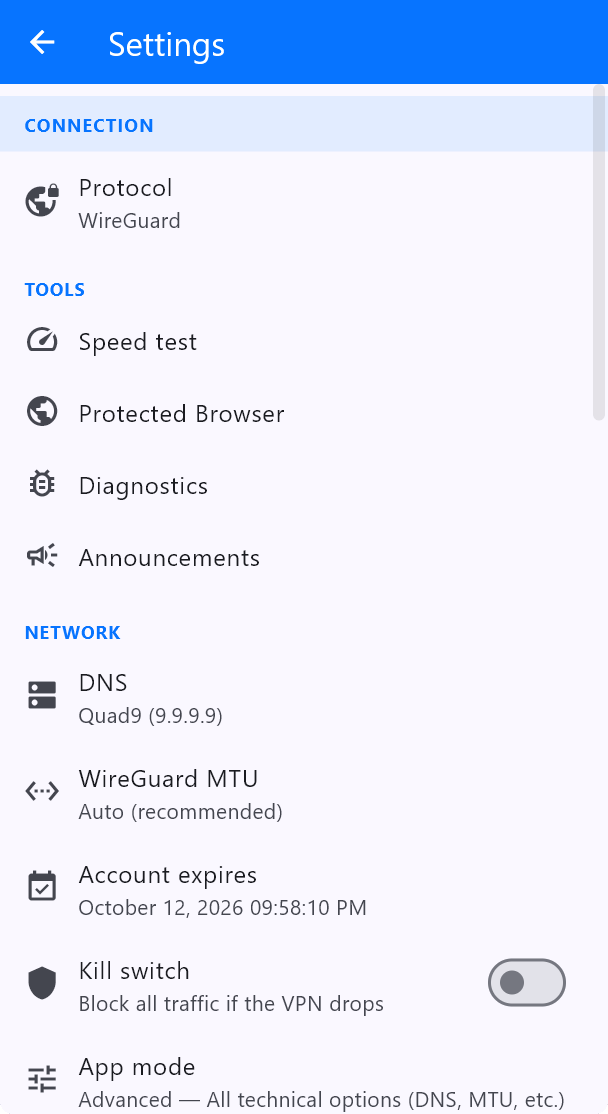
Speed test
- Connect to a server (a nearby 10gb / P2P node is a fair test).
- Open Settings > Speed test.
- Run the test and compare it with vpnsafe.net/speedtest in a browser.
If WireGuard is slow on a strict network, switch protocol to OpenVPN UDP or TCP and test again.
Protected Browser
Protected Browser opens a browser that uses the VPN session. Use it when you want a clean window for a site that misbehaves in your main browser, or when you want to be sure the session is going through the tunnel.
Diagnostics
The bug icon on the home screen and Settings > Diagnostics collect connection details for support. Run diagnostics if you cannot connect, then include the result when you contact us.
Announcements in the same TOOLS list is the in-app notice board (same as the bell on the home screen).
This article is also in the client area knowledge base.