
 Live Chat

WireGuard MTU and Advanced App Mode
Introduction
Some settings are hidden until the app is in Advanced mode. DNS and WireGuard MTU are the two you will use most.
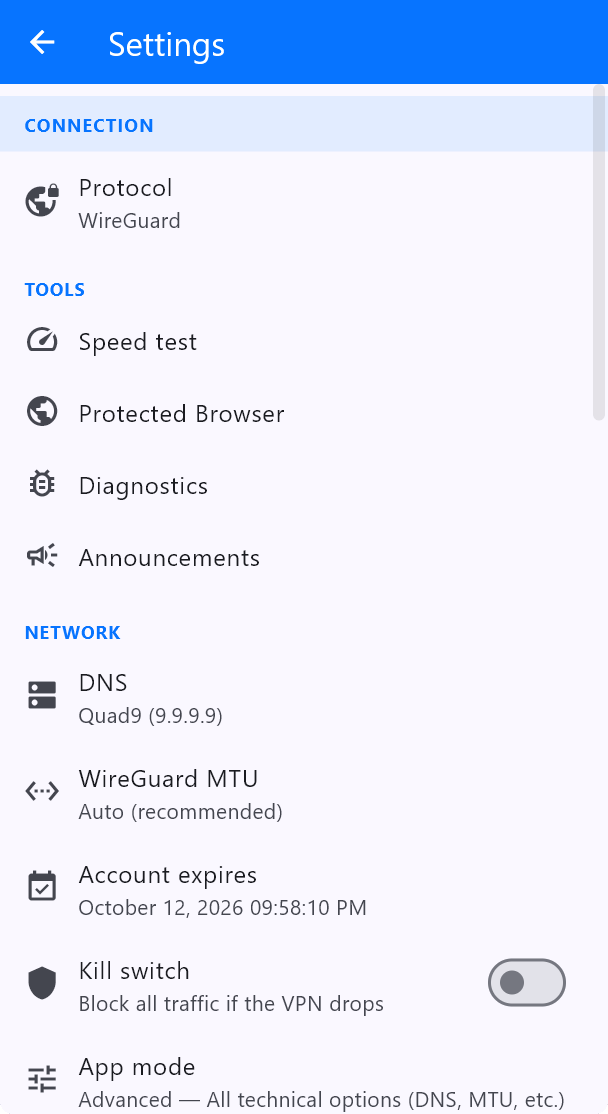
Turn on Advanced mode
- Open Settings.
- Find App mode.
- Set it to Advanced — All technical options (DNS, MTU, etc.).
WireGuard MTU
MTU is the largest packet the tunnel will send. The app default is Auto (recommended). Leave it there unless websites load half-finished, VPNs connect but nothing browses, or you are on a PPPoE / mobile network that fragments packets.
If you must set it by hand, try 1420 (the value used on many VPN Safe WireGuard configs) then 1280 on very restricted links. Set it back to Auto if you are not sure.
The official WireGuard app screenshot for a London 10GB tunnel shows MTU: 1420 and DNS servers: 1.1.1.1. The VPN Safe Windows app prefers Quad9 unless you change it. Both are valid; pick one place to manage DNS so they do not fight.
This article is also in the client area knowledge base.