
 Live Chat

Installing and Connecting with the Android App
Introduction
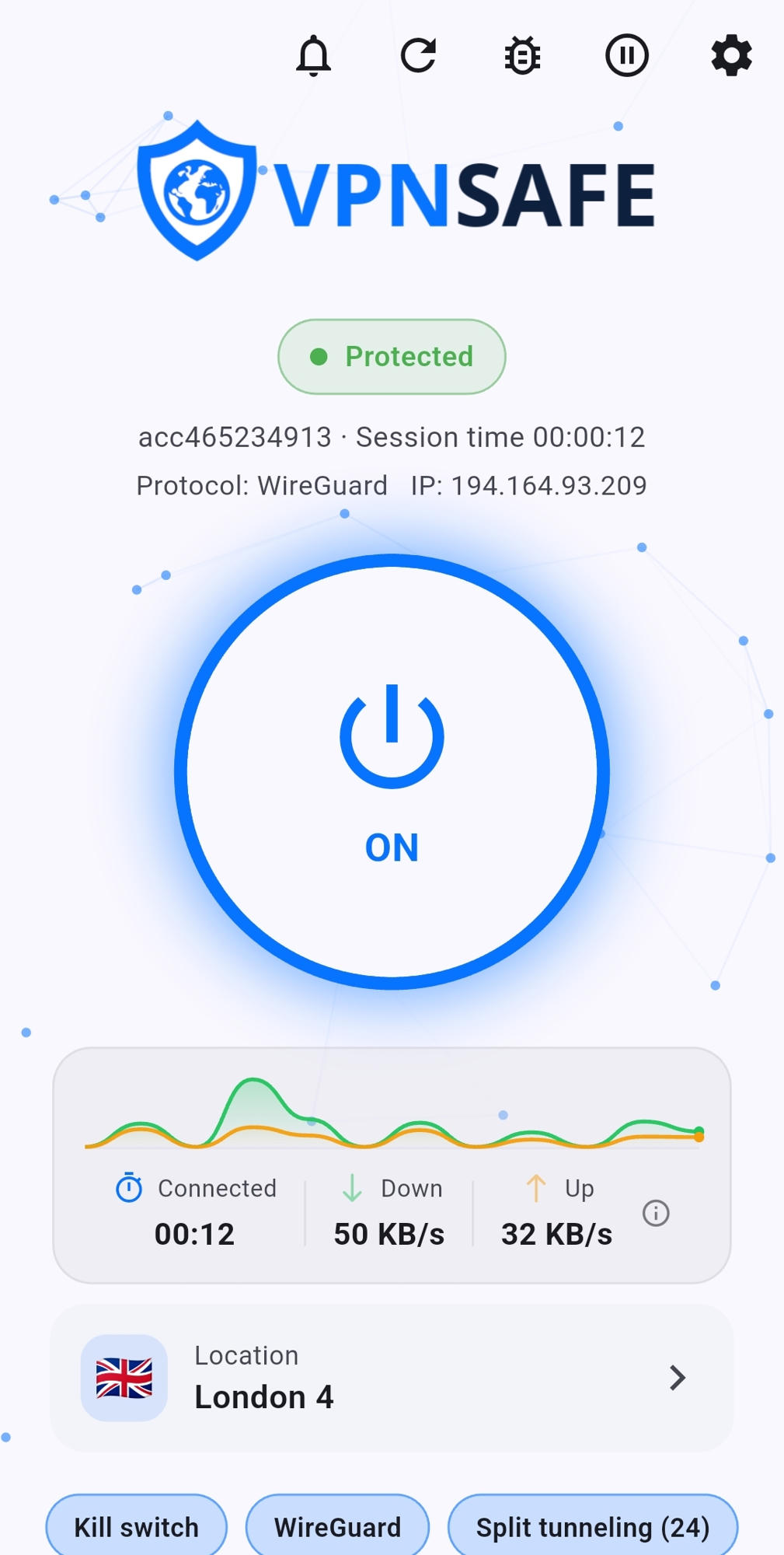
The VPN Safe Android app matches the Windows app: one power button, a location card, and Settings behind the gear. Sideload the APK from our site (it is not a Play Store listing in these downloads).
Download: vpnsafe.net/downloads/android.apk.
Install
- On the phone, open vpnsafe.net/downloads/android.apk and let the APK finish downloading. Android will block the install until that app is allowed to install from outside the Play Store.
- Allow external app sources for the app that downloaded the file (Chrome, Firefox, or Files):
- Open Settings → Apps → Special access → Install unknown apps. On Samsung this is often Settings → Security and privacy → Install unknown apps (sometimes labelled External sources).
- Tap the browser or Files app you used.
- Turn on Allow from this source.
- Return to the download notification, or open the APK in Files, and tap Install. Confirm when Android asks to install VPN Safe.
- Open the app and sign in with your Client Area VPN username and password.
- When Android asks for a VPN connection permission, tap OK.
Connect
- Tap the power button until it shows ON.
- Wait for Protected, the session timer, protocol (WireGuard), and VPN IP.
- The chips at the bottom are shortcuts: Kill switch, current protocol, and Split tunneling (the number is how many apps are excluded).
The status bar shows a key / VPN icon while the tunnel is up. Confirm the IP at vpnsafe.net/whats-my-ip.
This article is also in the client area knowledge base.