
 Live Chat

Using OpenVPN Connect with VPN Safe Configs
Introduction
If you would rather use the official OpenVPN Connect app instead of the VPN Safe client, import our .ovpn files. We publish two zip packs: UDP (faster) and TCP (stricter networks). Profiles use port 1194 and your Client Area username/password.
App: openvpn.net/client
UDP configs: vpnsafe.net/downloads/openvpn-udp.zip
TCP configs: vpnsafe.net/downloads/openvpn-tcp.zip
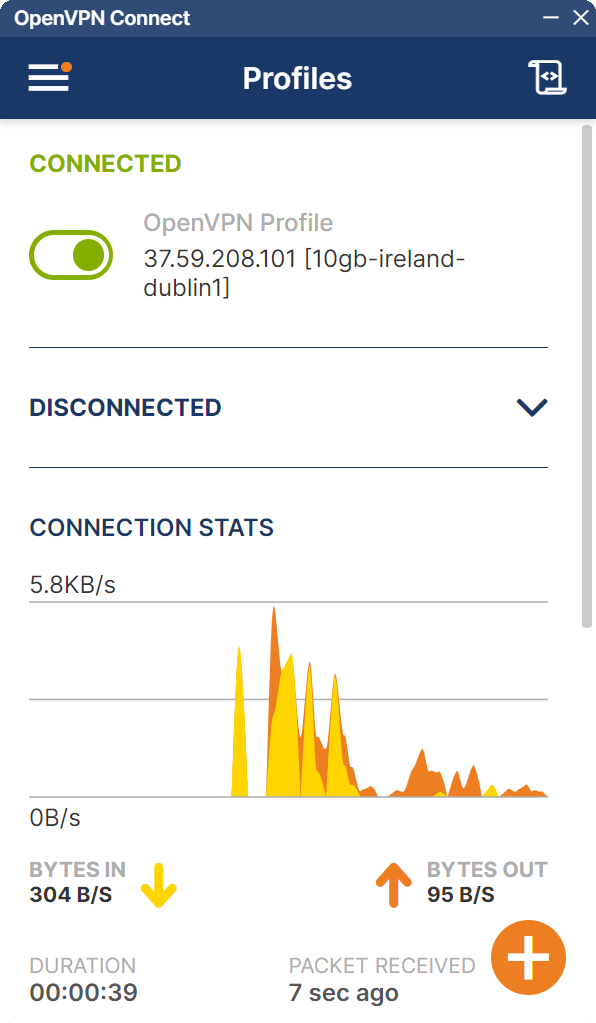
Import and connect
- Install OpenVPN Connect for Windows, macOS, Android, or iOS.
- Download the UDP or TCP zip and unpack it. Each file is a city, for example
10gb-ireland-dublin1.ovpnorbelgium-malinois1.ovpn. - In OpenVPN Connect tap + (or the import icon) and choose the
.ovpnfile. - When asked, enter your VPN Safe username and password (the same as the VPN Safe app, for example
acc943407). - Toggle the profile on. The list shows CONNECTED in green, bytes in/out, and duration.
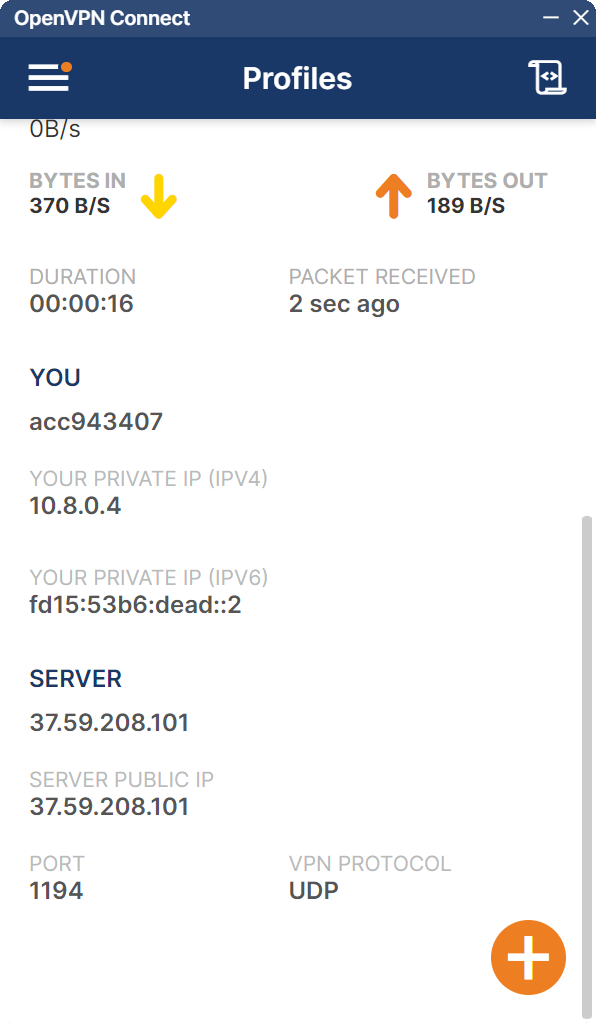
The details pane shows your tunnel IPv4 (example 10.8.0.4), the server public IP, port 1194, and UDP or TCP. Check the public IP at vpnsafe.net/whats-my-ip — it should match SERVER PUBLIC IP.
This article is also in the client area knowledge base.