
 Live Chat

Installing VPN Safe on Amazon Firestick
Introduction
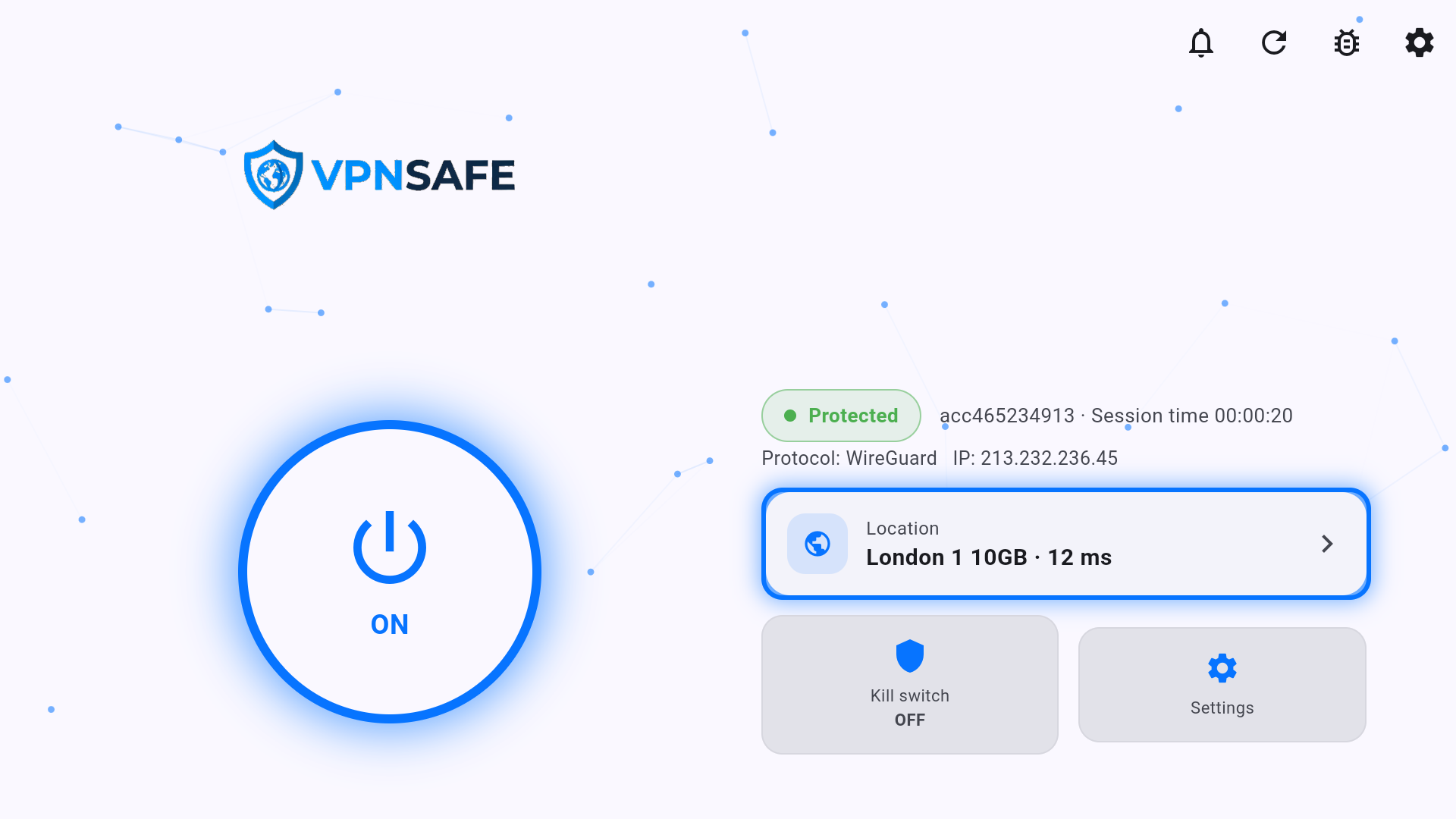
Amazon Fire TV Stick, Stick 4K, Stick 4K Max, and Fire TV Cube run the VPN Safe TV app. You sideload it with the Downloader app and code 9802820. The TV app is the same one used on Android TV (large power button, location card, kill switch tile).
Downloader code: 9802820
Direct APK: vpnsafe.net/downloads/firetick.apk or vpnsafe.net/downloads/androidtv.apk
Allow external app sources
- From the Amazon Appstore, install Downloader (by AFTVnews).
- On the Firestick, open Settings > My Fire TV (on some models this is Device).
- If you do not see Developer options, open About and click the Fire TV name seven times.
- Open Developer options > Install unknown apps. This list is where Fire TV lets an app install from outside the Amazon Appstore.
- Select Downloader and turn it ON.
Install with Downloader
- Open Downloader. In the URL / code box type 9802820 and press Go. Wait for the APK to finish downloading.
- If Fire TV still blocks it, go back to Install unknown apps and set Downloader to ON, then return to Downloader.
- Tap Install and confirm when Fire TV asks to install VPN Safe.
- Open VPN Safe, sign in with your Client Area VPN username and password, and accept the Android VPN permission.
Connect
- Highlight the power button and press OK so it shows ON.
- Wait for Protected, protocol (usually WireGuard), and a VPN IP.
- Use the location card to pick a city if you need a specific country.
You can also download the APK on a USB stick and sideload it, but Downloader is the usual path on a Stick. Paid plans allow 6 devices at once — the Stick counts as one.
This article is also in the client area knowledge base.