
 Live Chat

Firestick Troubleshooting
Introduction
Most Firestick VPN problems are install permission, a stale server, the kill switch, or a TV app that started before the tunnel was up.
Downloader will not install the APK
- Settings > My Fire TV > Developer Options > Install unknown apps > Downloader = ON.
- If Developer Options is missing, Settings > My Fire TV > About > click the device name seven times.
- Clear Downloader (force stop) and enter 9802820 again.
- Or browse to vpnsafe.net/downloads/firetick.apk in Silk and install from there, with unknown apps allowed for Silk.
App installed but will not connect
- Confirm username/password from the Client Area (VPN username, not always your email).
- Accept the system VPN dialog. If you tapped deny, reopen the app and connect again.
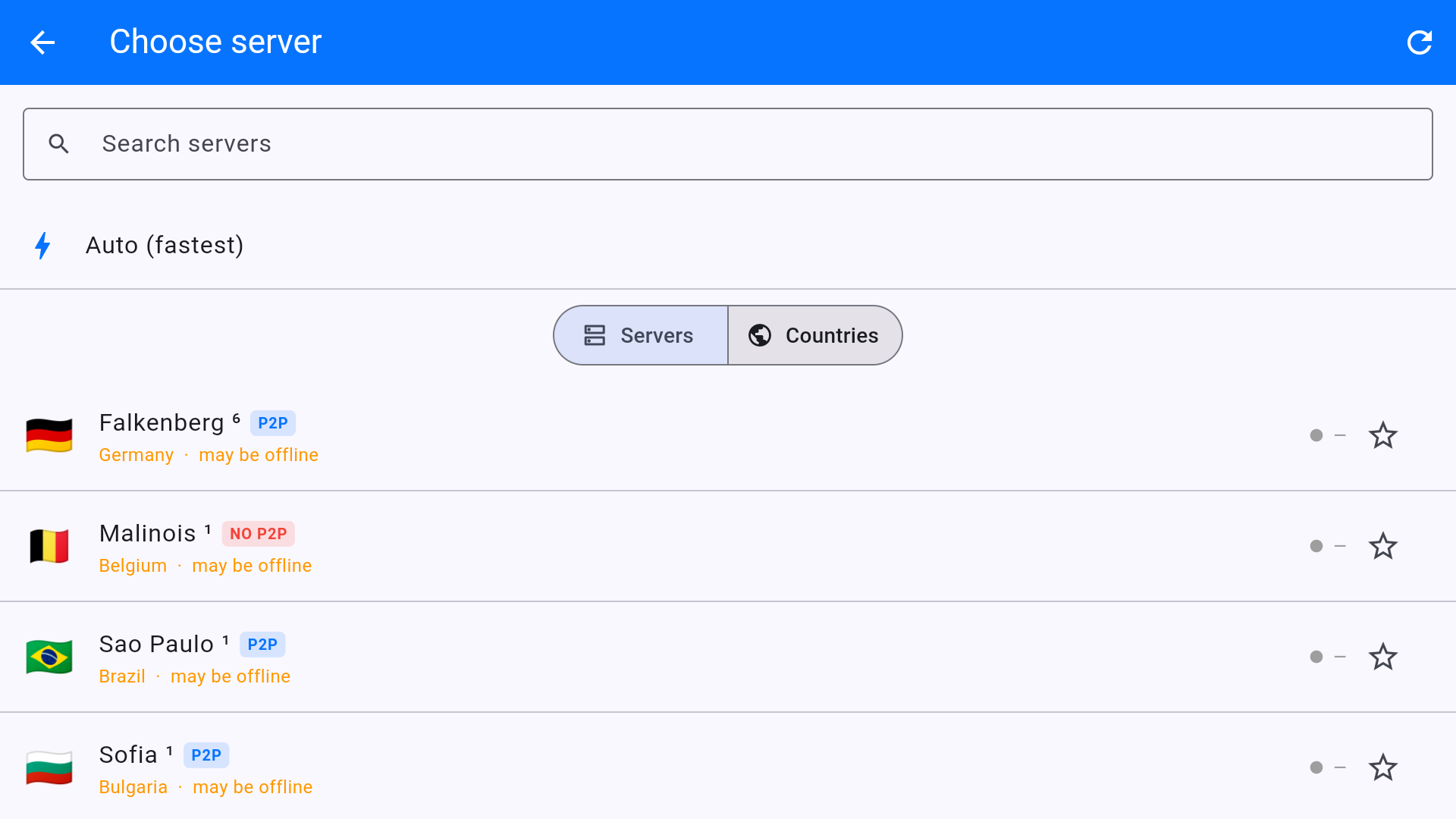
- Pick a server that is not may be offline.
- Settings > Protocol: WireGuard, then OpenVPN UDP, then OpenVPN TCP, then Stealth Mode.
Stick has no internet
If Kill switch is on and the VPN is down, the Stick blocks all traffic. Open VPN Safe, turn Kill switch off, or connect again. Then Home > Settings > Network and confirm Wi-Fi.
TV app ignores the VPN
Connect VPN Safe until it says Protected, then force-stop the streaming app and open it again. Some apps cache location at launch.
This article is also in the client area knowledge base.